

Manage content
Basics
After logging in, you will see the dashboard with the navigation menu on the left and a quick access menu on the right.
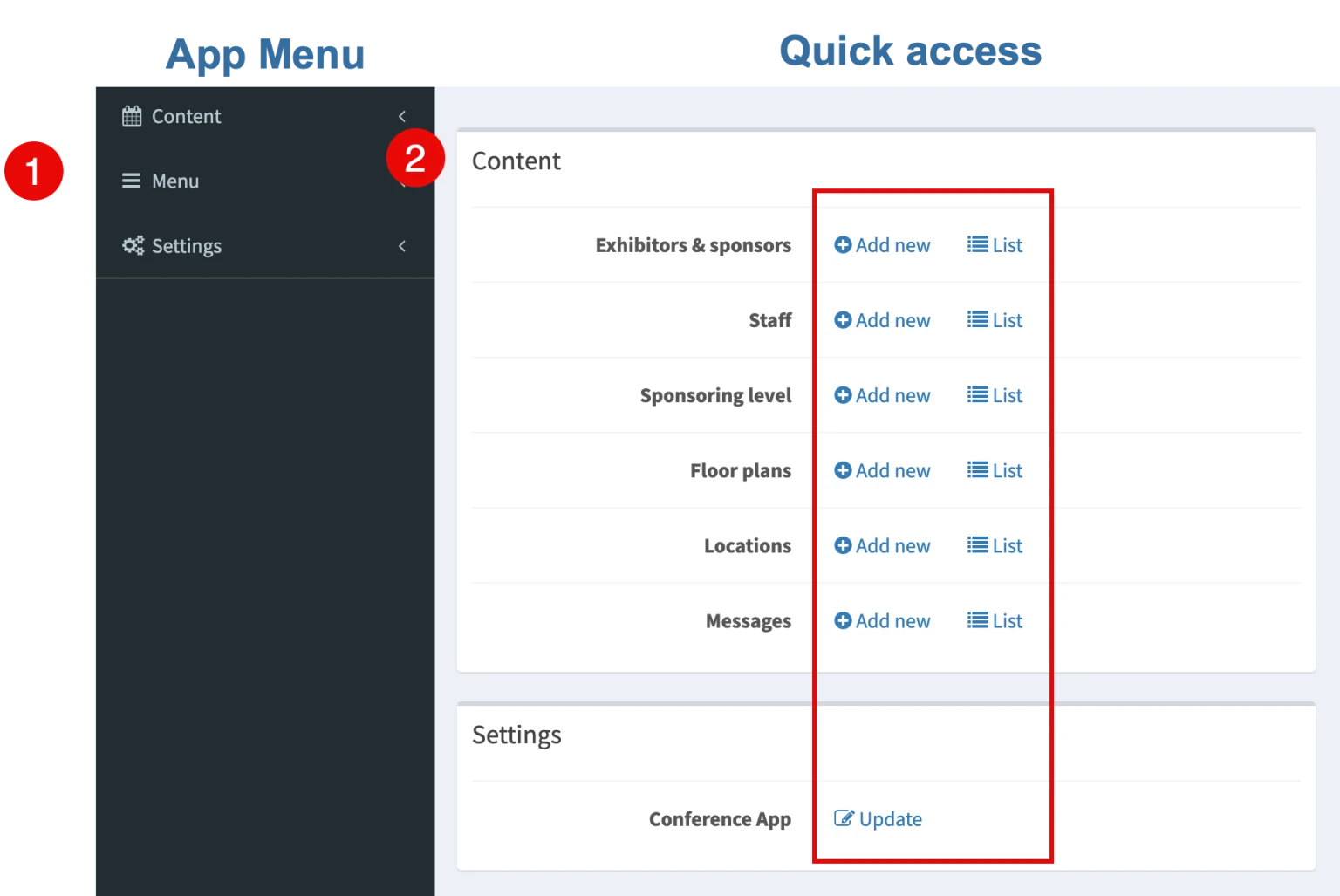
The navigation menu distinguishes between three areas for managing your content:
1. Content:
Here you manage Exhibitors & Sponsors, floor plans and messages.
2. Menu:
This is where you manage the structure of your app menu and individual page content.
3. Settings
The ‘Settings’ area gives you access to the app settings, e.g. to adjust the display of the programme or activate the login option for app users.
Create new content
There are several ways to add new content in different views:
in the content overview dashboard, via the button
Add newin the list view from which you are editing existing content (button
Add new, top right)
In the editing view of a new entry (Create buttons at the bottom of the page).
Edit content
You can open and edit existing content from the relevant list view.
1. Open the desired list from the navigation menu or the dashboard
(in the example: Exhibitors and Sponsors).
2. Open the desired entry by clicking on the Name or the Edit button.

3. Edit the content and confirm the changes by clicking on the button:
Update, to remain on the pageUpdate and close, to return to the list view
Please note:
To change the order, see Sorting content.
Deleting content
To delete content, use the list view or the edit form.
1. List view
Delete the desired entry using the Delete button.

2. Edit form
Open the required entry and click the Delete button.