

Create, edit, and delete messages
To create, edit, or delete a message,
navigate to
> Content
> Messages
Add new message
To create a new message, click the button Add new above the message list in the upper right corner.
The form will open where you can enter the data for the new message.
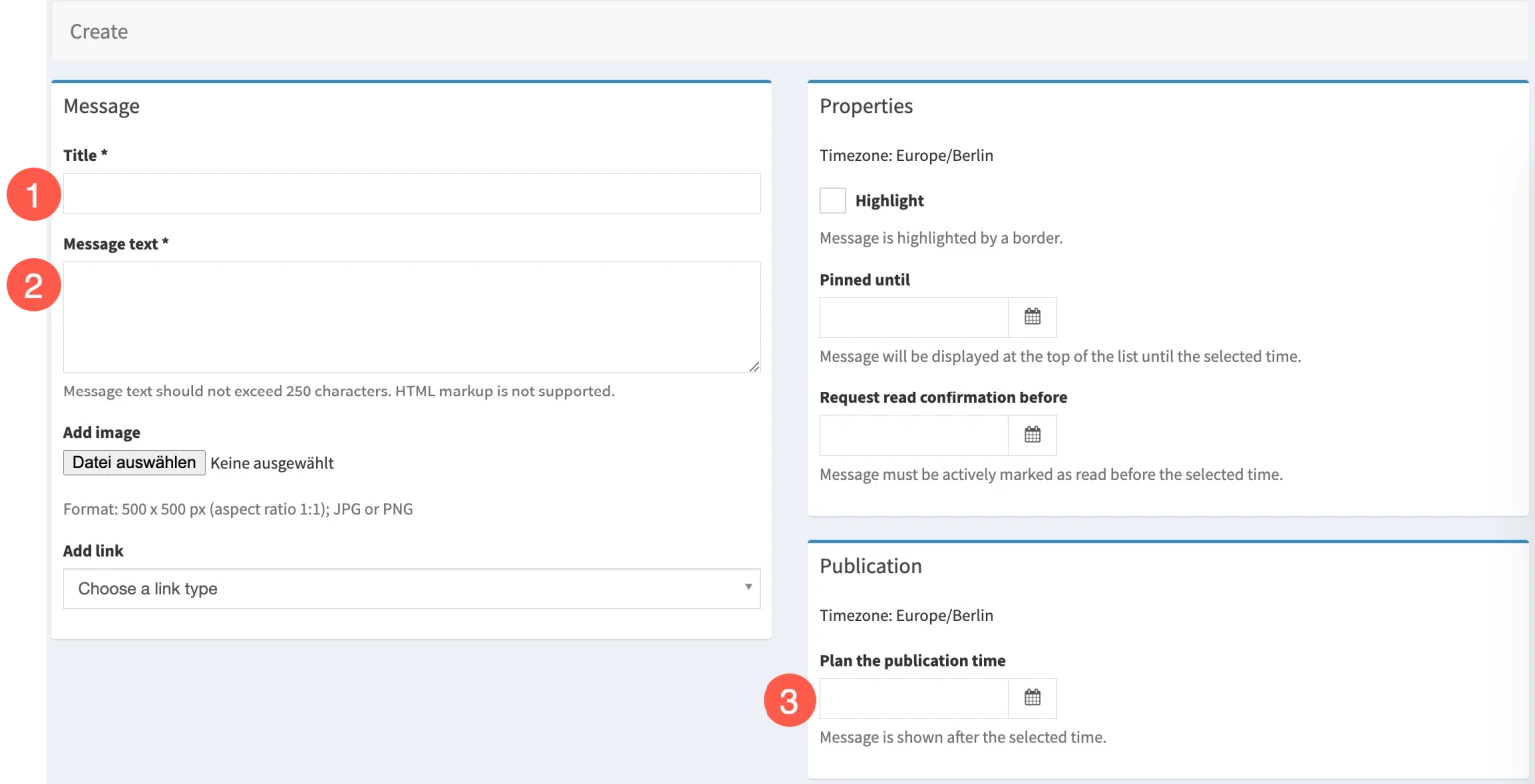
1. Title*
Insert the title (mandatory)
Recommended: 30-50 characters
2. Message text*
Insert the message (mandatory)
Recommended: 120 characters
3. Schedule the time of publication*
You can prepare messages and publish them at a later date or send them directly. In either case, a date and time must be entered. A click on the calendar icon automatically inserts the current time.

Once you have entered the title and text and specified the publication date/time, save your entries.
Create— save but stay on the pageCreate and return to the list— save and open the list of messagesCreate and add another— save and schedule an new message
Edit and delete messages
You can edit or delete any message in the list at any time.

Note: It can take up to 60 seconds for changes to appear in the app.