

Overview
You can add floor plans to the app to help your visitors find their way around the industrial exhibition and event location at any time.
First, upload your plans under "Floor plans". Next, link rooms and company exhibitors to a plan.
1. Upload the floor plan.
1. First, select the "Floor plan" option from the "Content" menu.
2. Then click on the Add new button in the top right corner.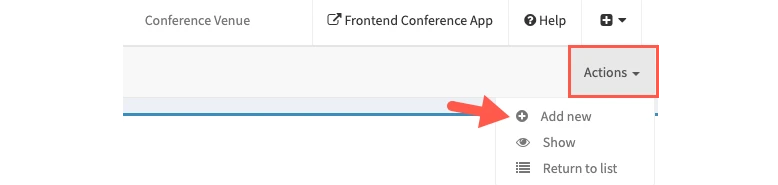
3. Enter the name of the plan (e.g. 'First Floor' or similar).
If you are using several plans: Specify the order in the "Position" field (e.g. 1 or 2).
4. Finally, upload the plan and complete the process with the green button create.
2.1 Linking a room to a floor plan:
1. Select the "Locations" menu item in the "Content" menu.
2. Click on the Add new button in the top right corner.
3. Select the room you want to link from the "Assign room to floor plan" drop-down menu.
4. From the "Floor plan drop-down menu", select the plan on which the desired room is located.
Position pin: To mark the room's position on the plan, move the mouse to where the room is located on the plan.
Hold the mouse down for longer to automatically set a pin at that position on the plan with longitude and latitude.
Changing the position on the floor plan
If you want to change the position of a room or a pin on the plan, proceed as follows:
1. Go into editing mode for the room.
2. Move the mouse to the position on the plan where you want to reposition the existing pin and hold the mouse down for a few seconds. This will automatically reset the position on the plan.
2.2 Linking an exhibitor stand
See the "Exhibitors & Sponsors" section for a description of how to link an exhibitor stand to a floor plan.