

Create company profile
You can create a company profile for any number of exhibitors and sponsors.
Company profiles can be opened in the app in various ways:
Via the exhibitor and/or sponsor overview
Via the floor plans
via inked advertising banners, sponsored events and sponsored message
Note: A profile must be created for each company, even if the profile is not to be made accessible (see link options below).
Navigate to
> Content
> Exhibitors and Sponsors
to open the overview of the company profiles.
 Here you can see which company profiles you have already created, whether a logo exists, whether a sponsorship level has been assigned, whether a stand number has been saved or whether a pin has been placed on the floor plan.
You can edit or delete company profiles from here.
Create company profile
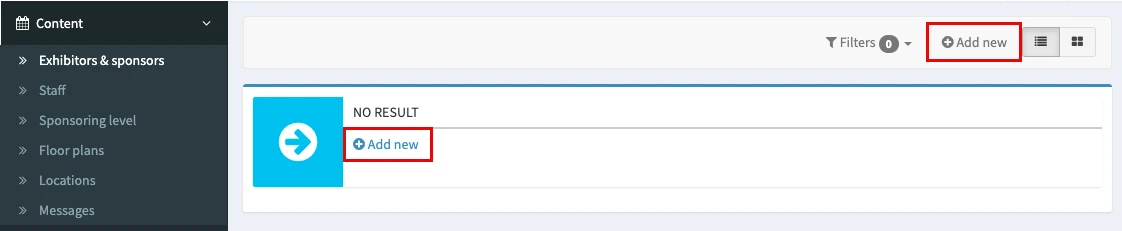
In the overview, click on Add new, to open the form for a new company profile.
The form for creating a new company opens.

1. Basic data
To create a company profile, you must provide at least the following information:
Exhibitor or sponsor?
Mark whether the company is an exhibitor, a sponsor or both.
Note: The selection has an effect on the layout in the app.Name (mandatory field): Enter the name of the company.
Description: Here you can enter a description of the company (approx. 250 characters).
The organization is linked to (mandatory field): Decide whether or not the company should be linked to the profile when mentioned within the app, e.g. by clicking on the logo.
Note: If you select here that the link should lead to the company website, a URL must have been stored in the section 3: ‘Contact’ > ‘Website’
2. Staff
Here you can add the company team. To do this, you must first create the team members under the ‘Staff’ menu item.
3. Contact
Enter the company's contact details and website here.
4. Social Media
If social media channels are to be stored, enter the URL of the respective channel here.
5. Contact
If you would like to include the full address of the company, please enter it here.
Complete company profile
Here you will find a sample company profile and instructions on how to complete it:

1 a. Upload Company logo
1 b. Enter Stand no.
2. Add a short description by using the description field in the "Profile" section (see below).
3. Add PDF documents, e.g. flyers
4. Link a company event
5. Insert a video or podcast
6 a. Create a data base for team members
6 b. Link the appropriate team members to the company in the "Profile" section (see below).
7. Mark the stand on the floor plan
8. Enter contact information, address data or social media links in the "Profile" section (see below).
Add sponsorship information
If the company has booked banner advertising, you can find further information here on how to place the advertising banners for sponsors in the app.
See: Banner advertising
You can label the sponsors of your event according to their sponsorship package, e.g. Gold, Silver, Bronze.
See:
Define sponsorship levels
Assign sposor level to a company